¶ Tutorial for CHEK VA Self-Testing
¶ Before Start
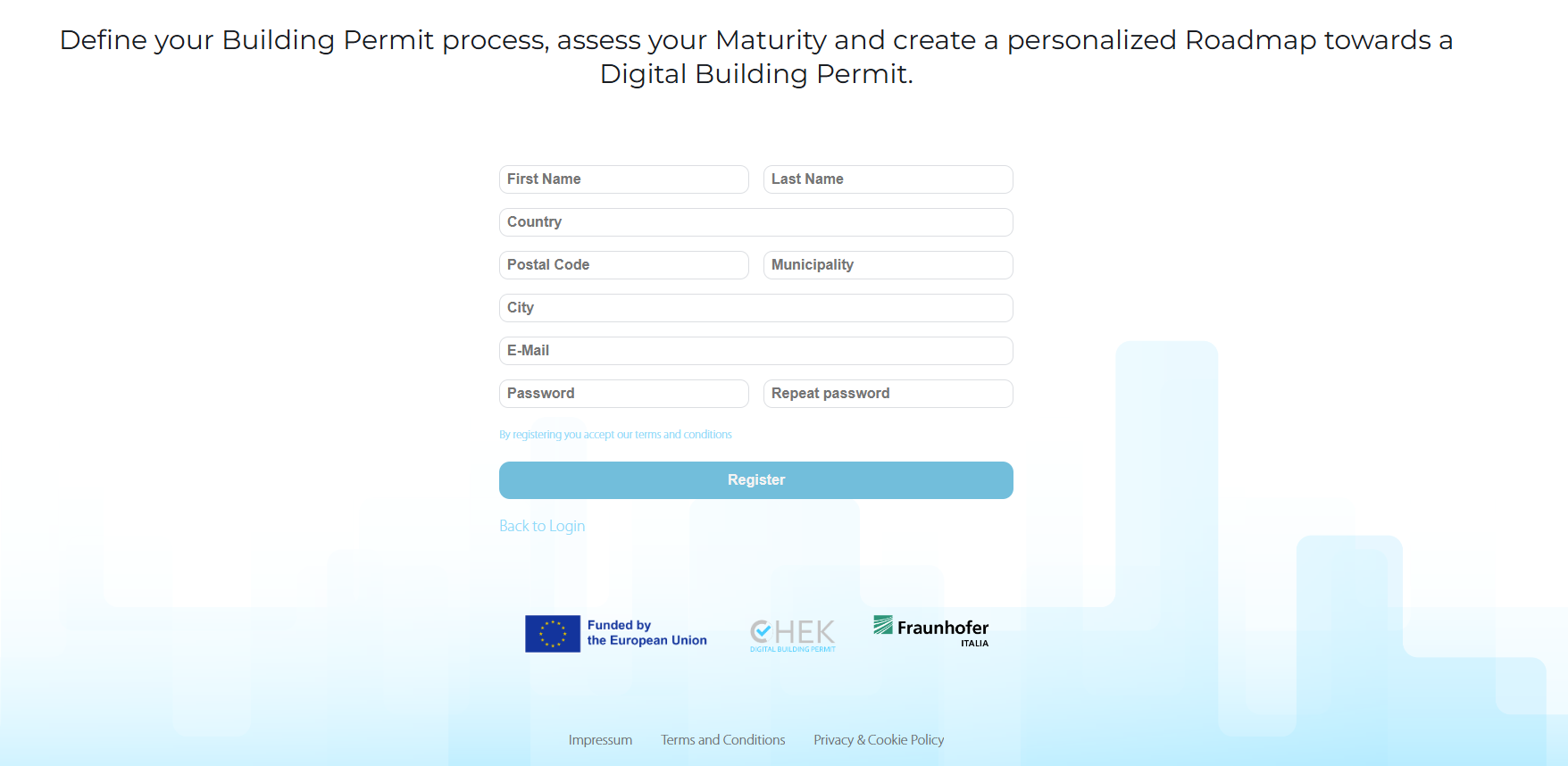
Account Creation:
- Click the link “Register here” and create an account on the website;
- After registering, go to “Log in”;
- Fill in all the information in the registration form;
- If login issues occur:
- Clear your browser cache.
- If problems persist, contact Fraunhofer Italia.
Purpose:
The goal of the test is to create a process map of your municipality’s current Building Permit process. For this, the CHEK VA requires detailed and clear information.
Tips Before Starting:
- Complete the test in English;
- Be precise about the methods and technologies you use. For example, write “e-mail” for electronic mail and “physical letter” for standard mail; avoid using just “mail”.
¶ Starting the Test
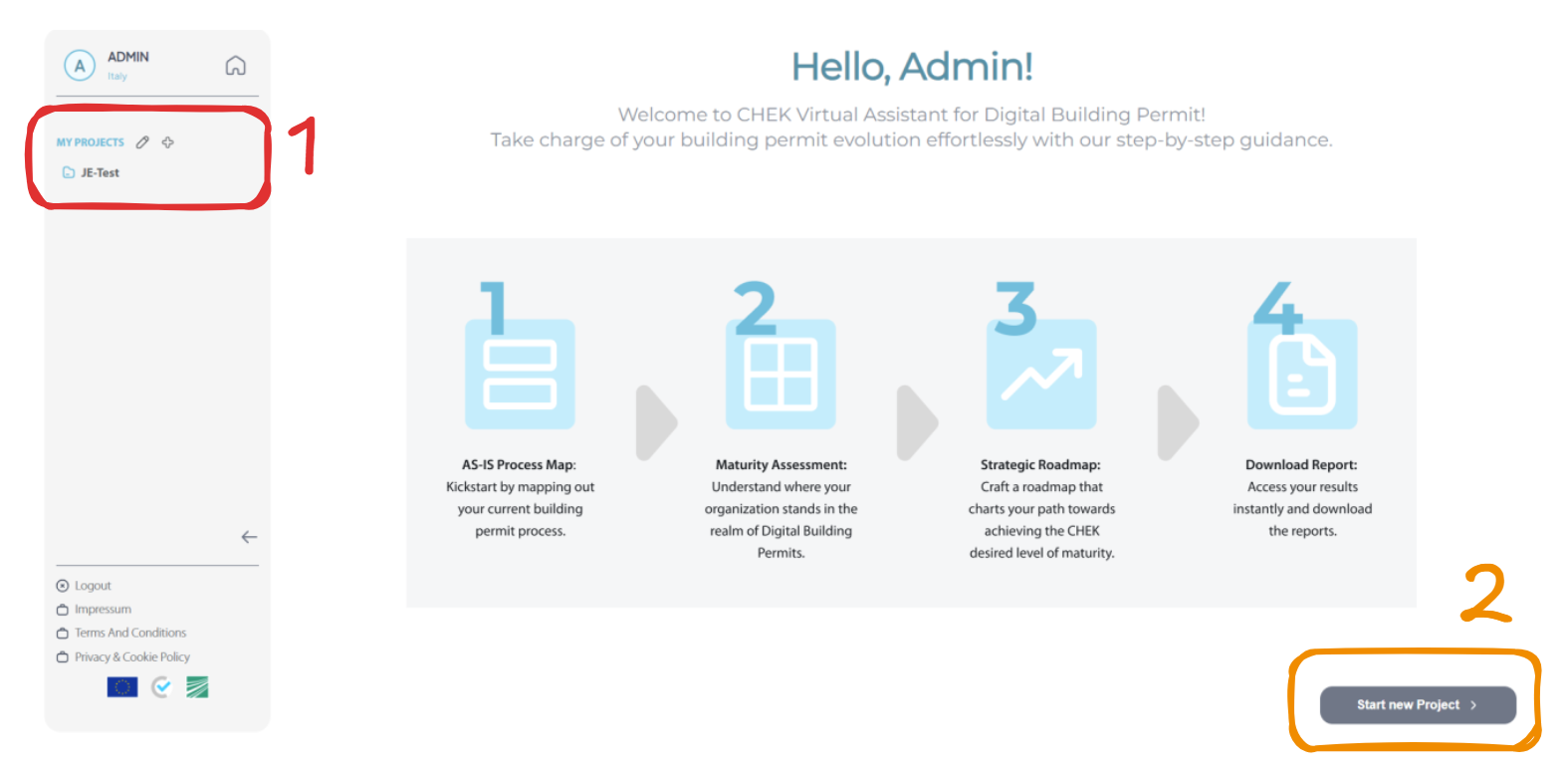
- After logging into your account, you will see the initial page with information about the CHEK VA and the steps of the process;
- Once you have saved projects, you can navigate through them using the left bar (1);
- To start the test, click on “Start new Project” (2) located at the bottom right of the screen.
Project Setup:
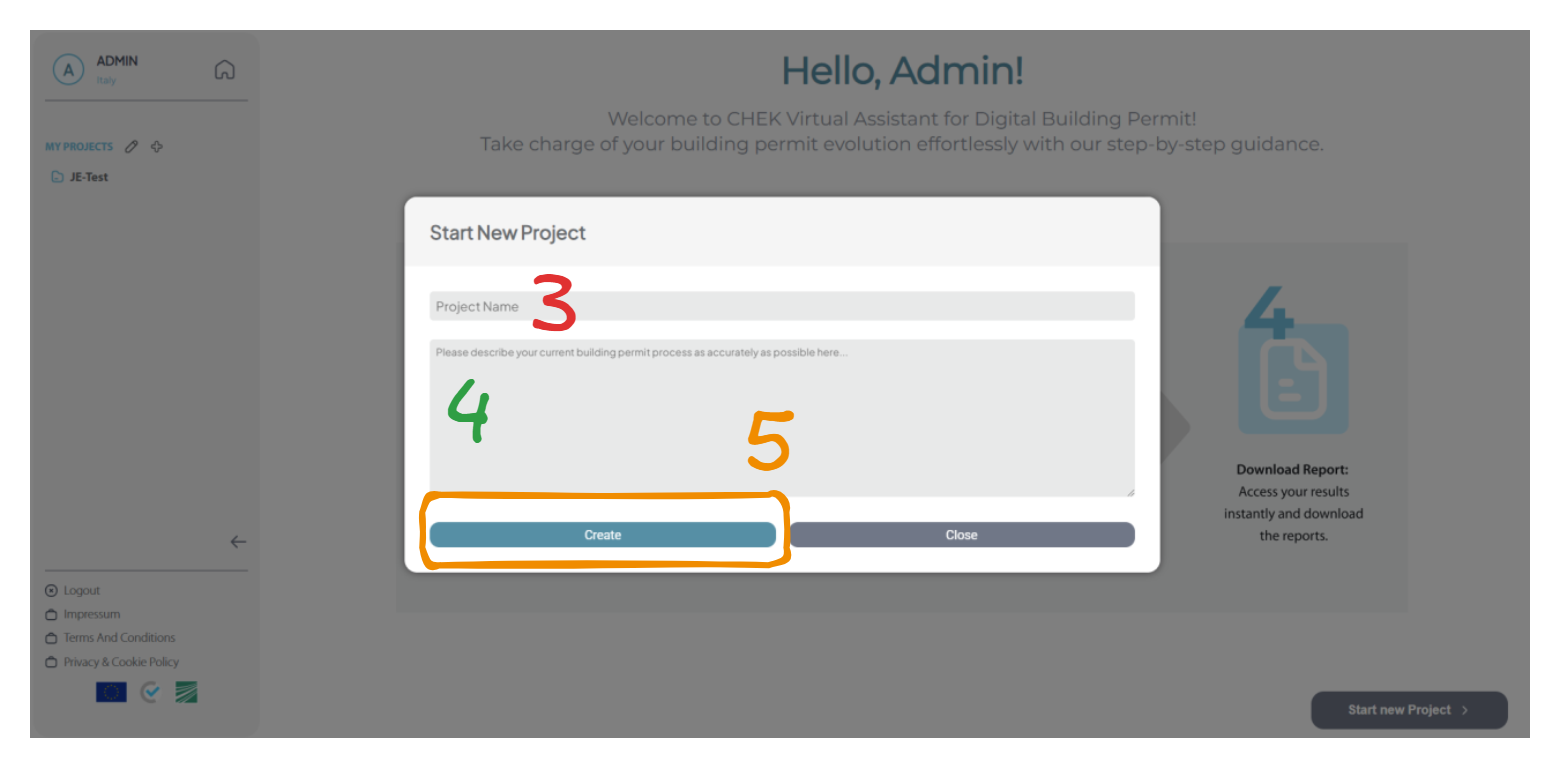
- Choose the name for your new project (3).
- Write a description of your current building permit process (4).
Tip: Provide an accurate description by detailing the main processes and technologies used.
- When you are satisfied with your description, click the “Create” button (5).
¶ Project Interface:
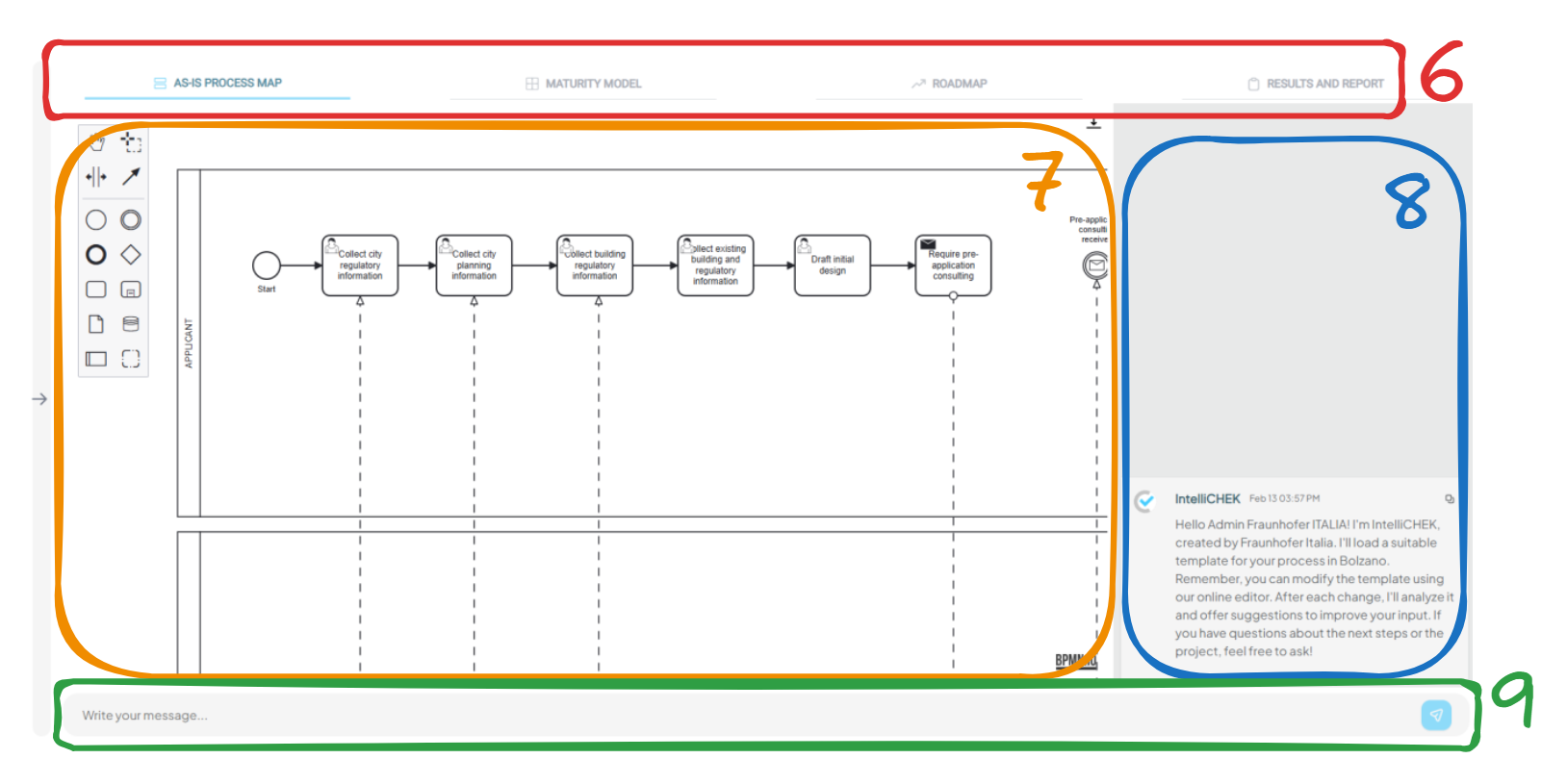
A new window will open, displaying the following components:
- 6: Tabs representing the steps of the VA (as indicated on the Homepage). The highlighted tab
represents your current step. - 7: BPMN editing tool. You can navigate and modify the process map as needed.
- 8: Chat history. Any interactions with the VA will appear here.
- 9: Message bar. Type your responses here and click the blue button on the right to send your
message.
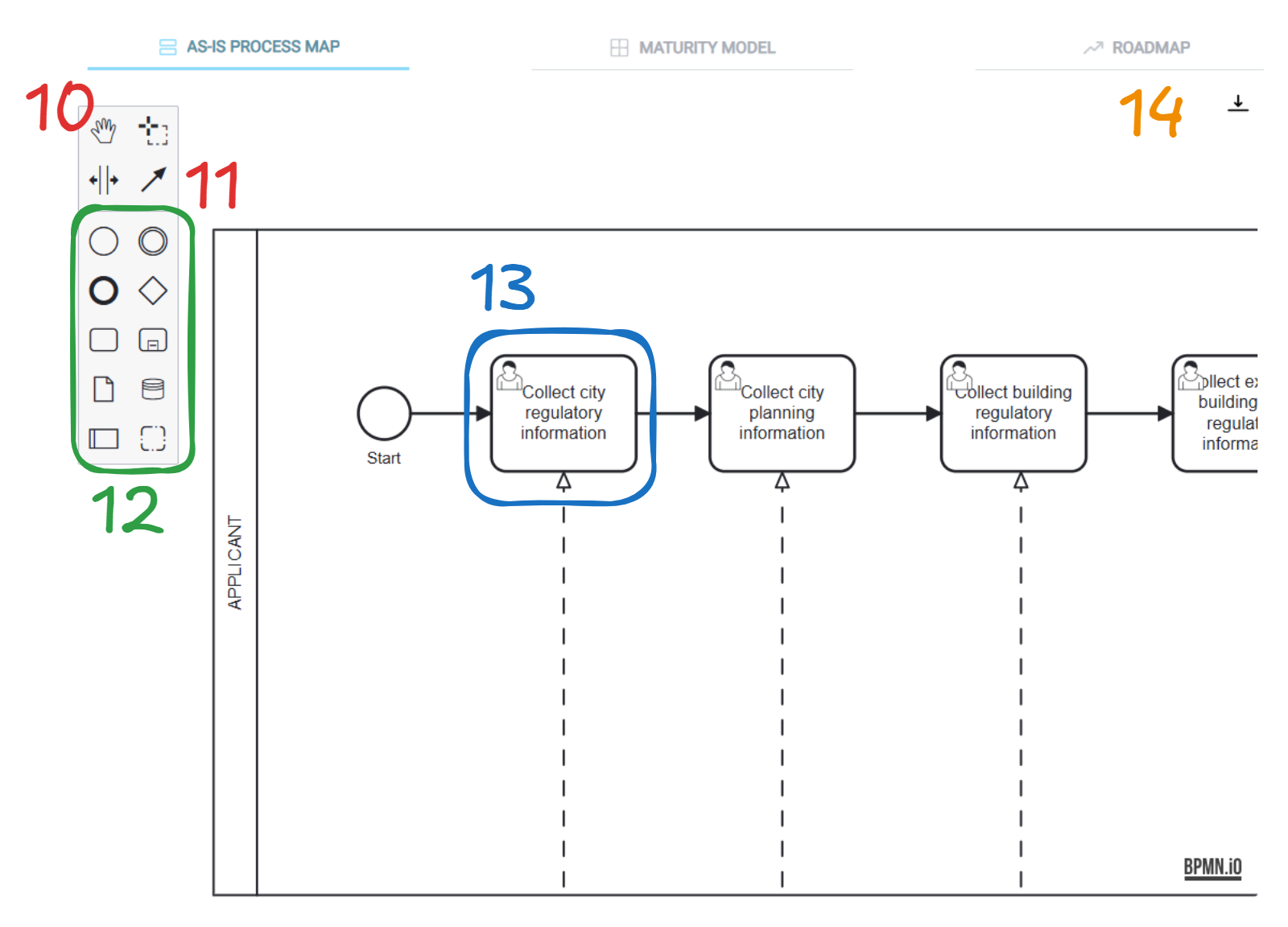
BPMN Editor Navigation:
- 10: Hand tool – used for navigating your map.
- 11: Connect tool – used to create connections between actions.
- 12: Tool for creating new elements in the process map.
- 13: Click on an existing element to modify it.
- 14: Option to download the BPMN map.
- Use CTRL + Mouse Scroll to zoom in and out on the process map.
¶ Creating Your Process Map:
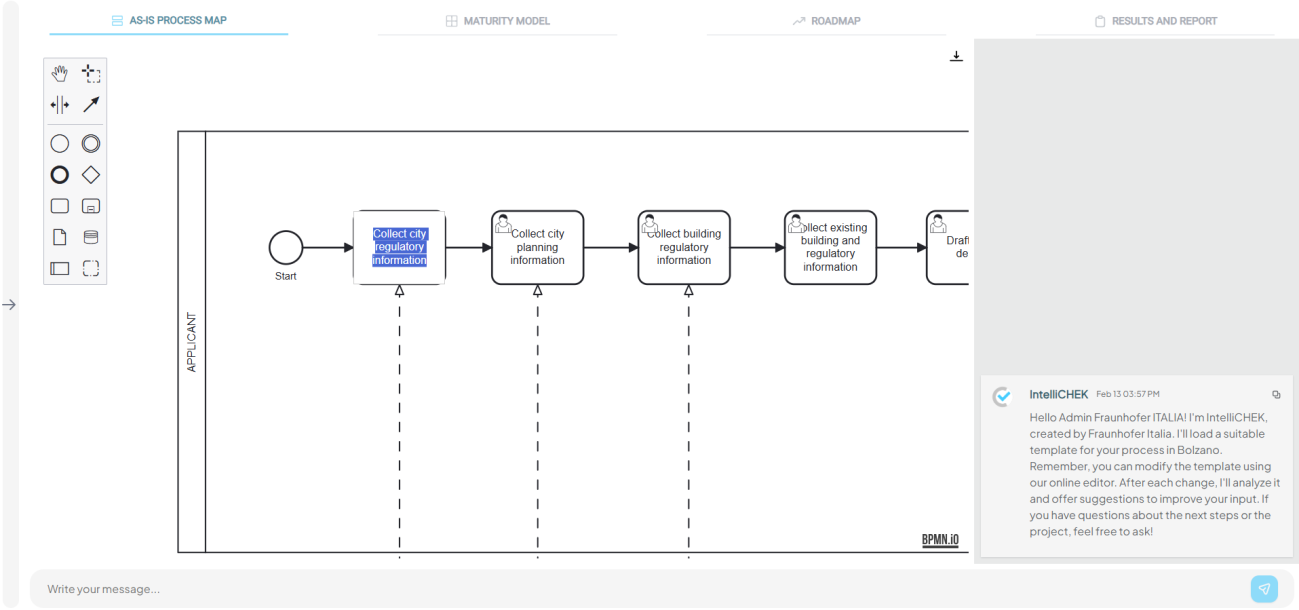
- The first step is to create a process map of your building permit process using a template for a
generic building permit. - Modify each action according to your scenario. If a particular action is according to your process,
keep it; otherwise, change or delete it. - To change the text, simply double-click the action and type the new name.
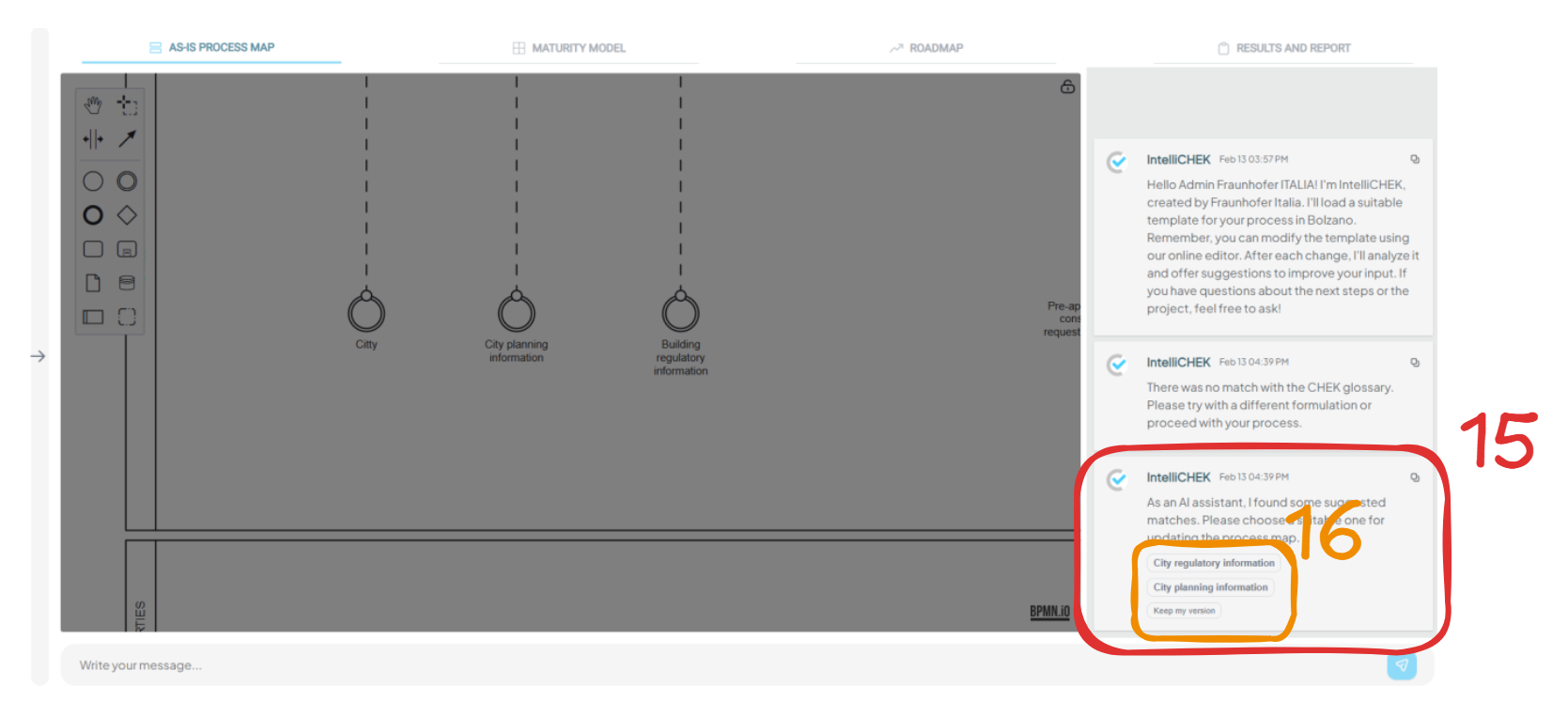
- Press Enter and wait for the VA to review your action. If the VA provides a message, address it
before proceeding to the next action (15). - If the VA offers naming options for your action, choose the one that fits best. If none of the options
are satisfactory, you can choose to “Keep your own version” (16).
- If the VA asks further questions, type your answer in the message bar.
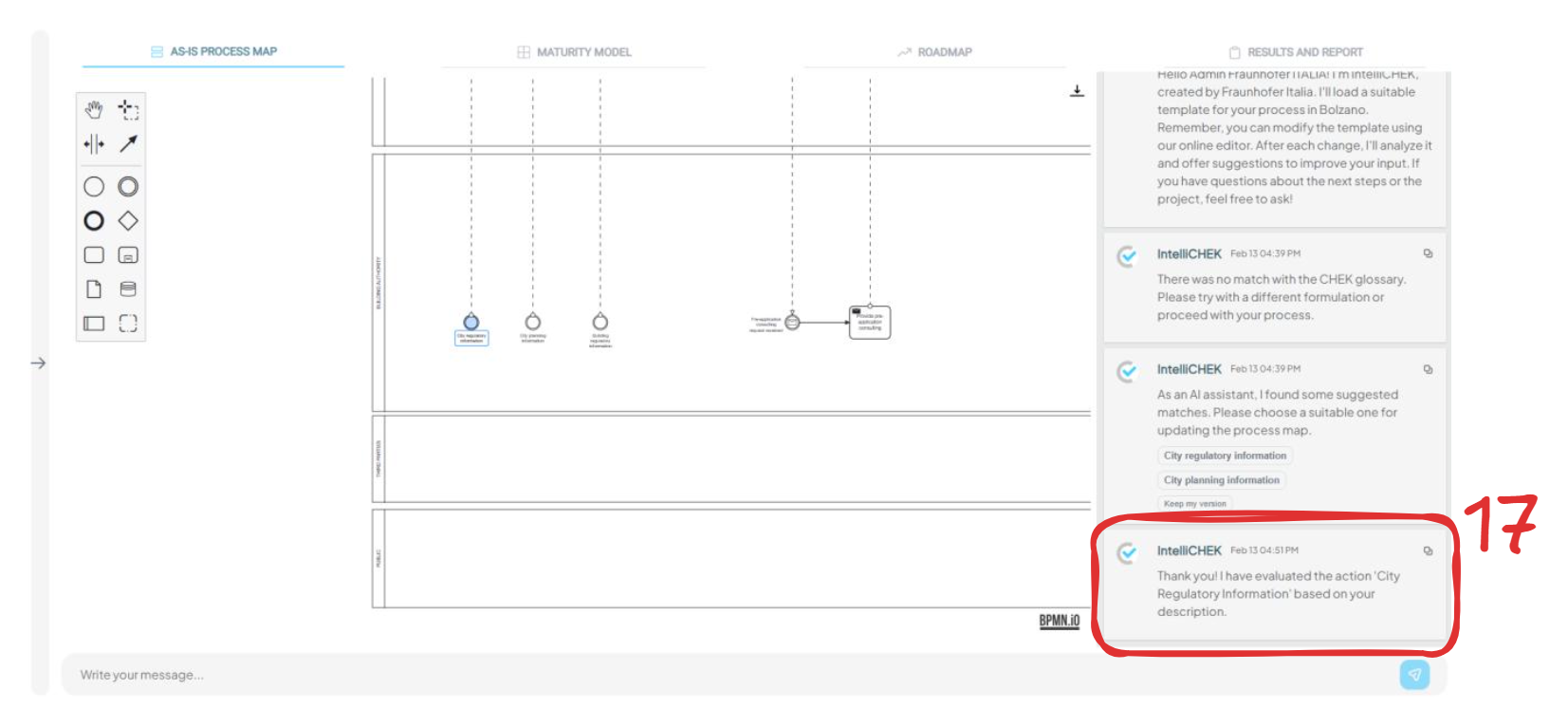
- Repeat this process until the BPMN screen is unlocked and you receive a confirmation message
from the VA (17).
¶ Finishing your Process Map:
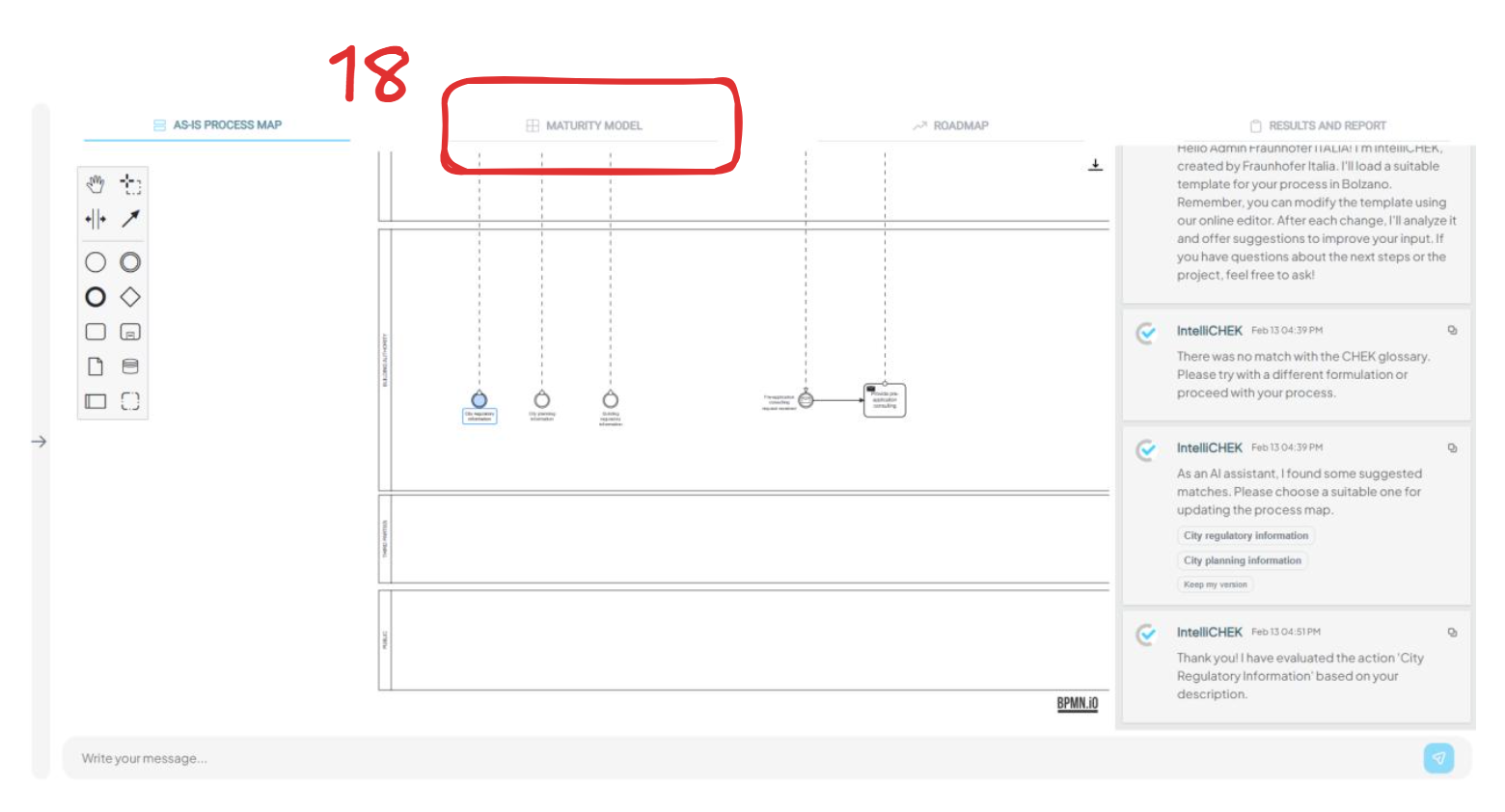
- Once the process map is complete with all relevant actions, click on the “ Maturity Model ” tab (18).
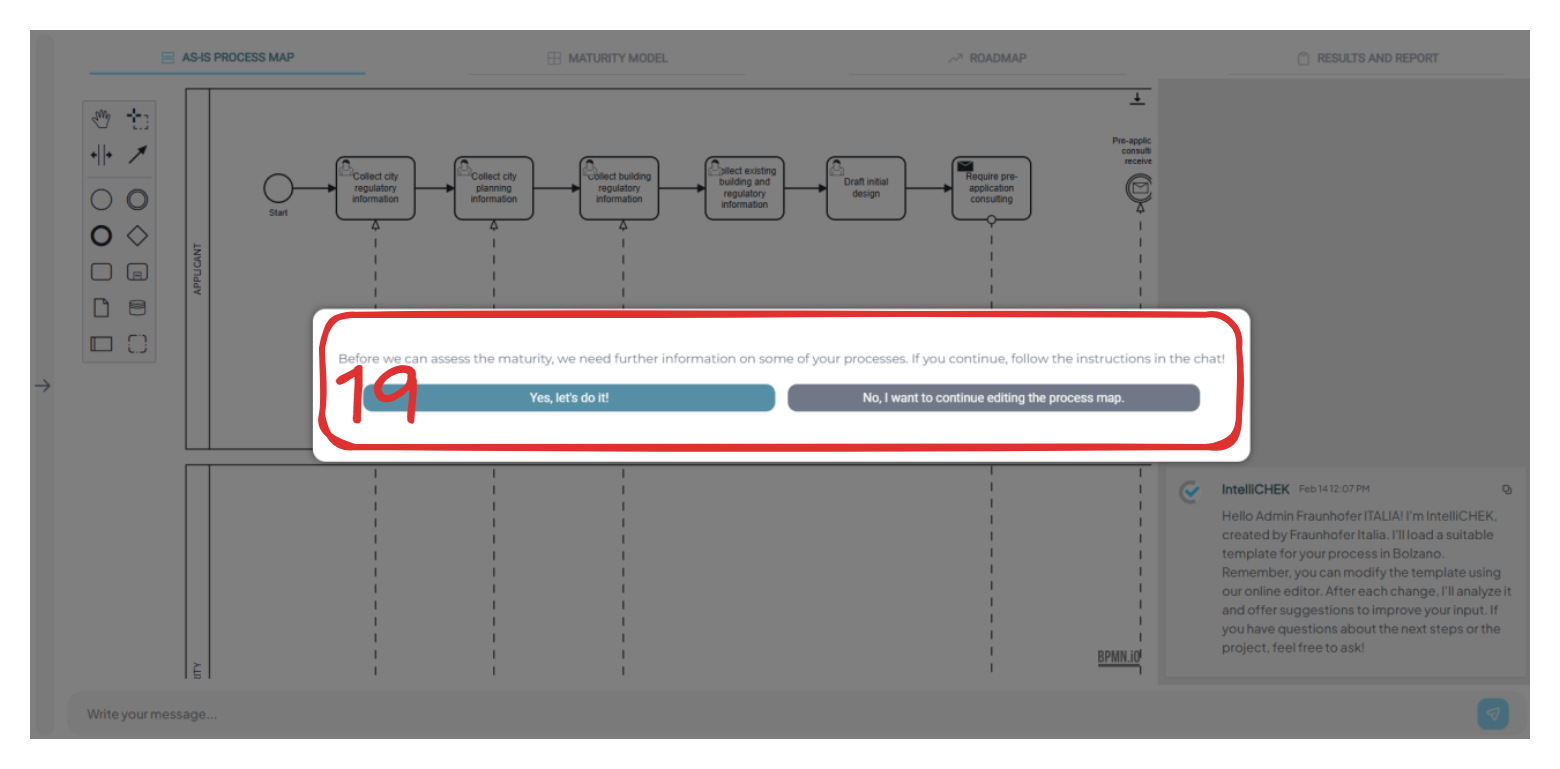
- If the VA has not finished evaluating all your actions, it will prompt you to answer extra questions
(19). You can choose to further modify the process map by clicking “ No, I want to continue
editing the process map ”.
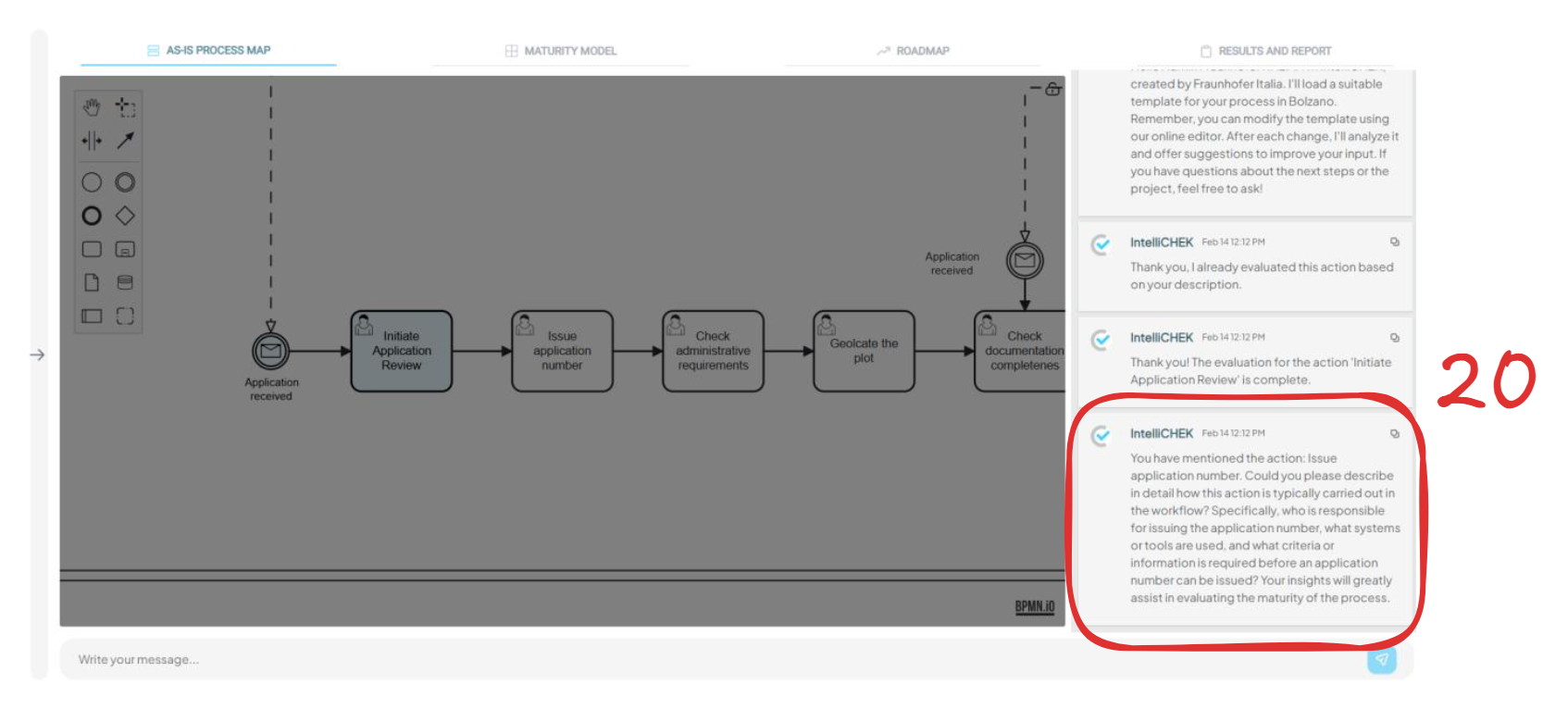
- The VA will review the actions and identify any that still need clarification (20). For each remaining
action, it will ask questions that you should answer thoroughly. - Type your answers in the message bar, send them, and repeat until all actions are evaluated.
- Once all actions are fully evaluated, a new screen will appear with a multiple-choice form (21).
- Select the description that best fits your municipality for each question.
- Proceed to finish the maturity model evaluation (22).
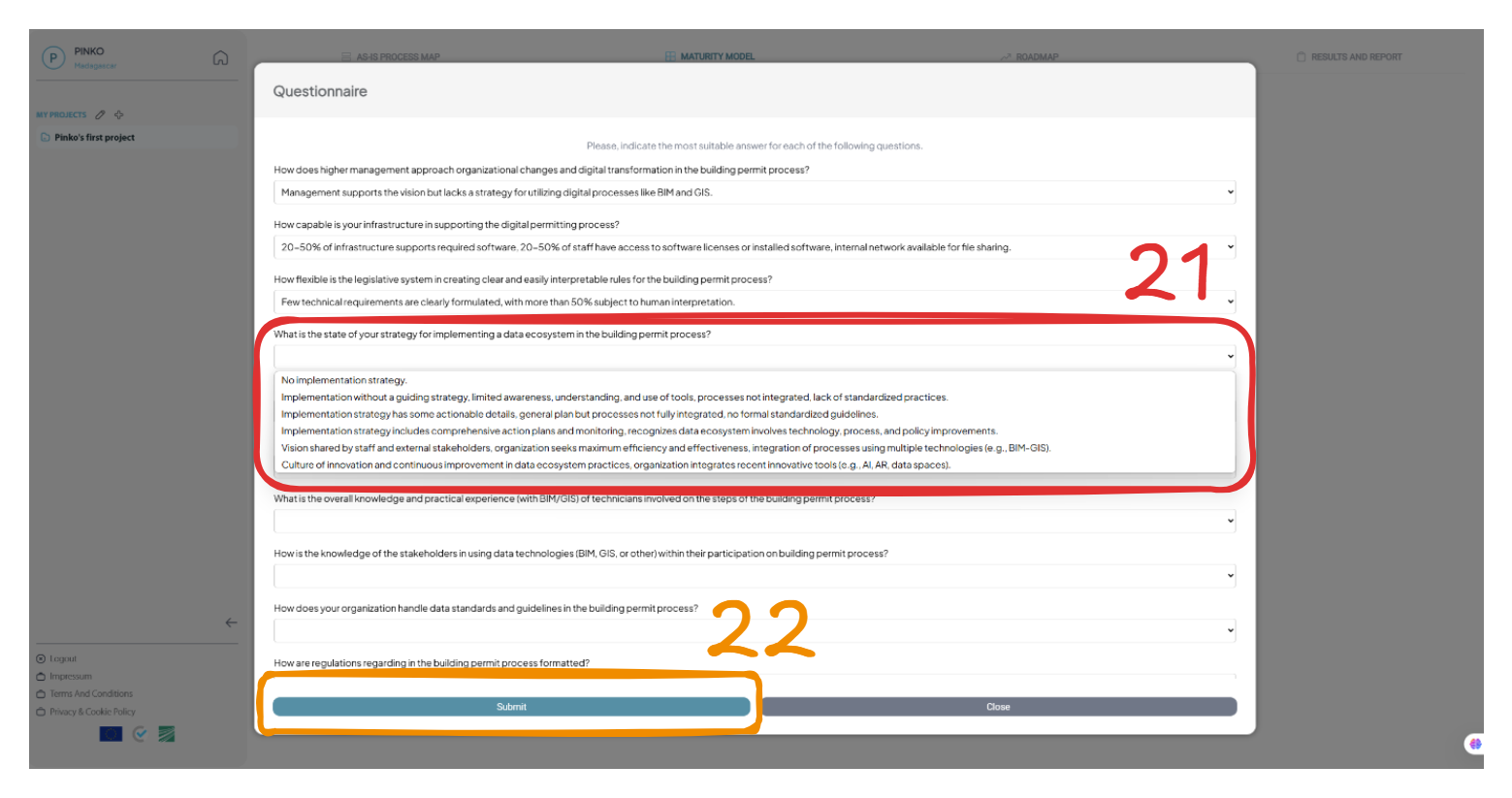
- The process to generate the maturity results might take a few minutes. Wait until the screen is
unblocked to view your results.
¶ Maturity model results:
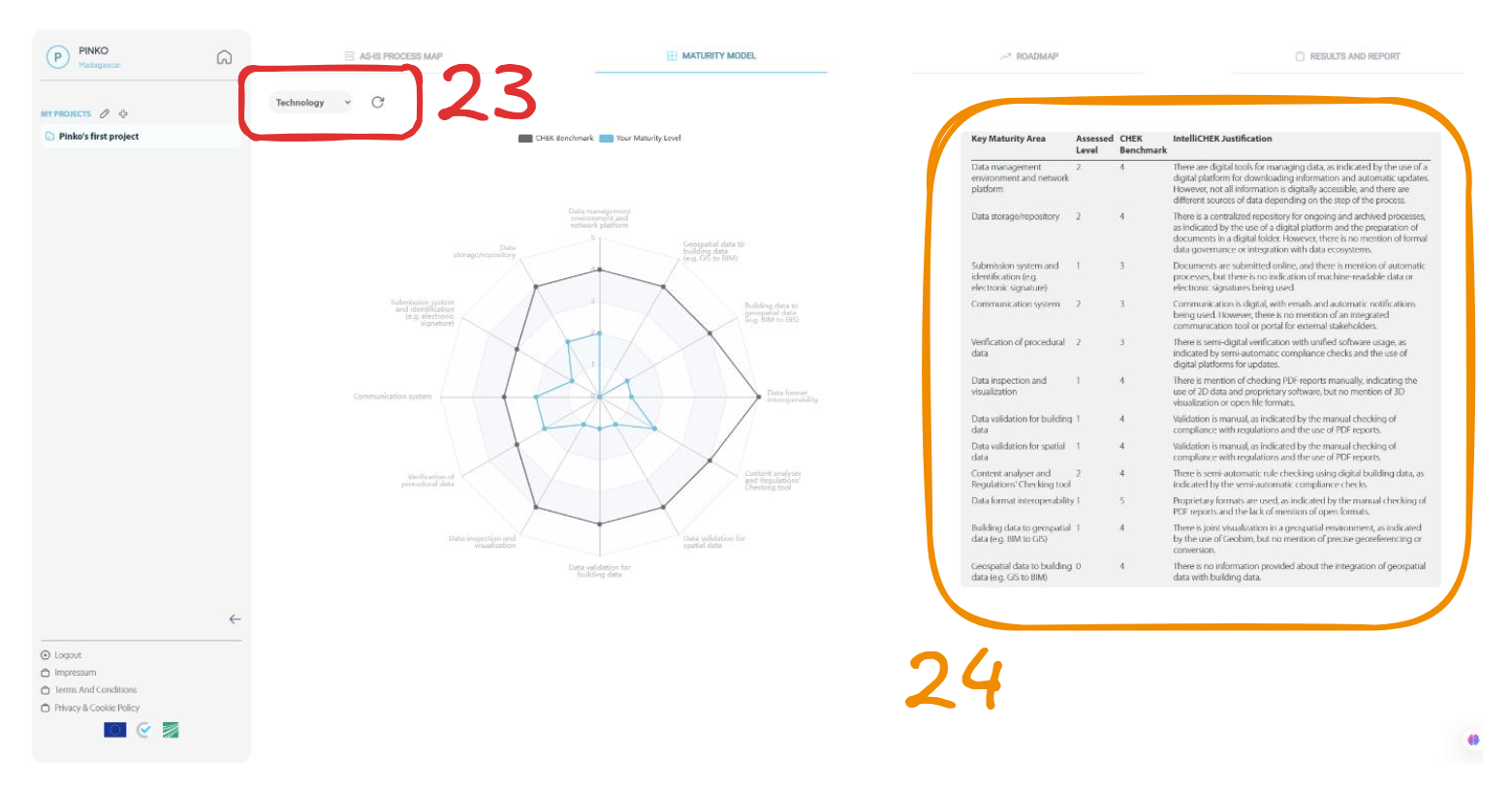
- With the map results, you can view radar graphics for each category. Change the category using
the field in the top left corner (2 3 ). - You can see a combined result that includes all key maturity areas along with the level assigned to
each by the VA (2 4 ).
¶ Maturity Results:
- View radar graphics by category change via top-left field (23).
- See combined results showing maturity levels across key areas (24).
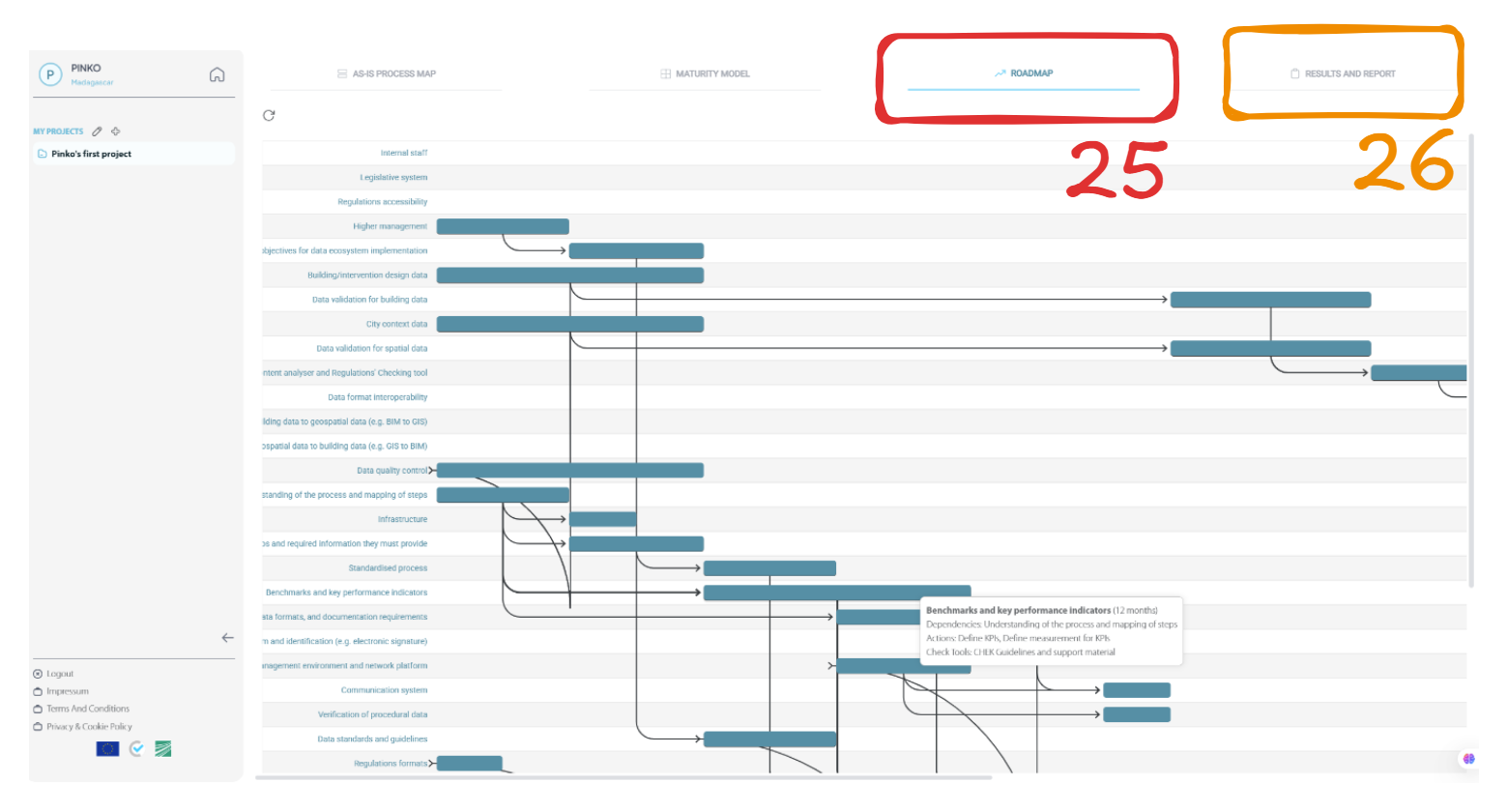
- Click on “Roadmap” tab to generate the CHEK roadmap (25) and on the “Results and Report”
tab to generate the report of your process (26).
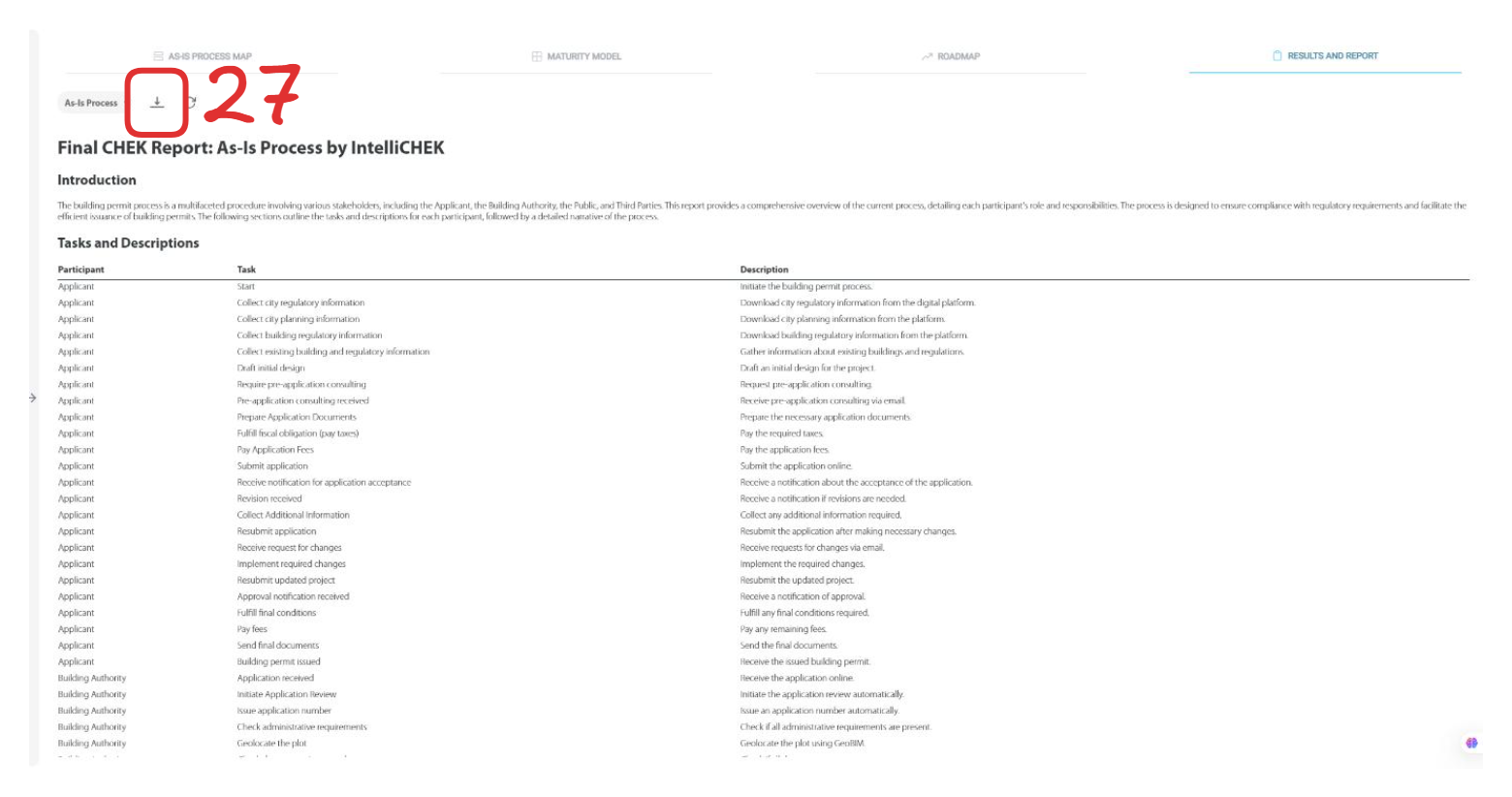
¶ Finishing the testing:
- Once you have reviewed the results, please download the report from “Results and Report” ( 27 ) and send it to Fraunhofer Italia.